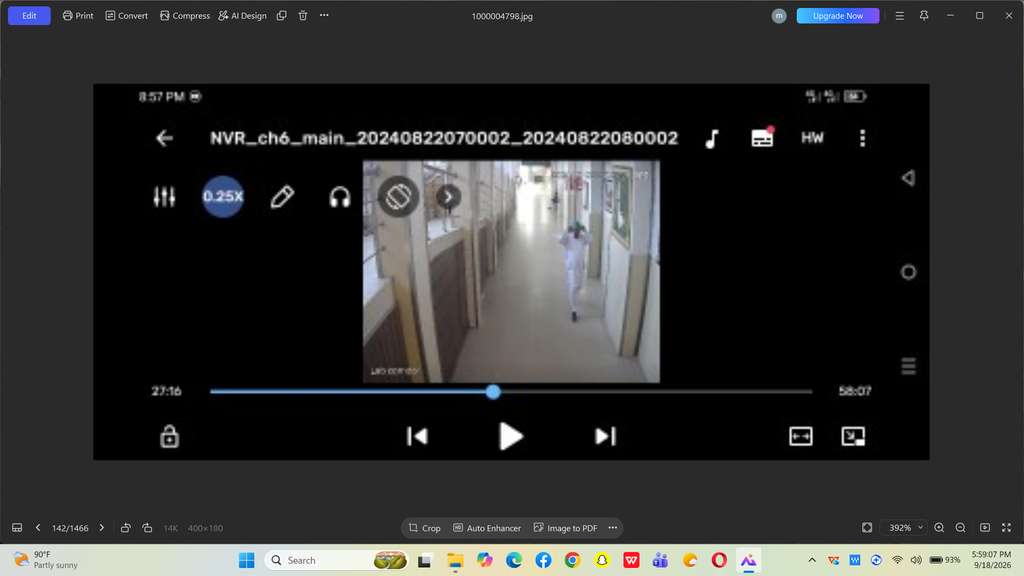
The image displays a CCTV video playback interface within a media player, showing footage from a security network video recorder (NVR).
The specific file name displayed at the top of the media window is NVR_ch6_main_20240822070002_20240822080002. This file naming convention details exactly when the video was recorded:
Channel: Channel 6 (ch6_main)
Start Time: August 22, 2024, at 07:00:02 AM
End Time: August 22, 2024, at 08:00:02 AM
Network Video Recorder:
The footage itself captures a brightly lit hallway or school corridor where an individual dressed in a white outfit is walking away from the camera. The video player interface includes standard media control overlays such as playback speed (0.25X), a volume toggle, a progress timeline bar, and playback/pause shortcuts.
Extract specific details:
Are you trying to extract specific details or investigate an incident from this security footage timestamp? Let me know what you are looking for so I can help you analyze it further.
AI can make mistakes, so double-check responses
this screenshort acheave the video
To save, extract, or achieve a playable video file from this screenshot, you will need to locate the original file on the computer or the security system. A screenshot cannot be turned back into a moving video because it only contains a static picture.
Here is how you can find and get the actual video file:
Method 1: Find the file on the computer
The image shows a photo viewer open on a Windows computer. The original video or photo might be saved in that same folder.
File Explorer
Look at the bottom-left corner of the photo viewer where it says 142/1466. This means there are 1,466 files in that specific folder.
Open your Windows File Explorer and go to the folder where this screenshot is saved.
Scroll through the files or search the folder for NVR_ch6_main to see if the actual video file (.mp4, .avi, or .dav) is stored there.
Method 2: Export from the NVR security system
If the video file isn’t on the computer, you will need to get it directly from your security system using the details in the file name:
Go to your NVR (Network Video Recorder) monitor or login interface.
Open the Playback / Search menu.
Select Camera Channel 6 (ch6).
Set the date to August 22, 2024.
Set the time range from 07:00 AM to 08:00 AM.
Insert a USB flash drive into the NVR and click Export or Backup to save the actual video file.
To help you find it, let me know: NVR Security System Recorder.
Is this screenshot taken on your own computer, or did someone send it to you?
Do you have direct access to the Network Video recorder (NVR)?